MCP server update: Auth, modern MCP support & more

We've made some updates to the Globalping MCP server. Over the past few months, we refined the server's authentication flow, upgraded its transport layer, fine-tuned its tools, and improved support for modern AI clients.
If you're new to it, the Globalping MCP server provides AI tools with access to real network measurements, such as ping, traceroute, DNS lookups, and more via the Globalping API. Our goal is to provide you with a tool that helps you debug connectivity issues, verify API availability, and check performance across different regions, all in natural language, directly from your editor or chat window.
To better understand the difference of API and MCP you can check the article by apideck.
In this post, we'll walk you through what changed and why it matters.
Upgrade from SSE to streamable HTTP transport
One of the biggest updates is our move from SSE (Server-Sent Events) to the new streamable HTTP MCP transport. This update brings the Globalping MCP server up to date with the modern MCP ecosystem, improving overall stability and performance.
To use the new transport, update your MCP server config to https://mcp.globalping.dev/mcp instead of the legacy https://mcp.globalping.dev/sse. You can find config examples at the end of this article.
Why the change?
- more reliable and robust connections
- lower latency when streaming results
- better compatibility with MCP-capable tools
- future-proofed as MCP continues to evolve
If you're interested, you can learn more about why MCP moved away from SSE in this article on fka.dev.
Authentication improvements
The MCP server now supports two authentication options: token-based authentication and OAuth. Token authentication is new, so let's take a closer look at both options.
OAuth
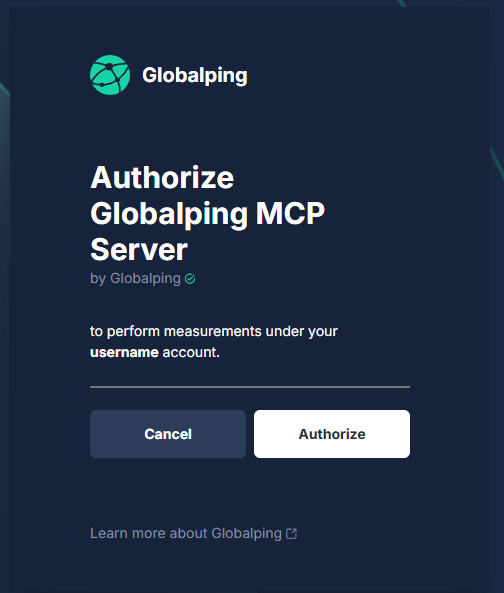
If you've used our MCP server before, you're already familiar with the OAuth flow. However, we've improved it to be more reliable and predictable, especially when used inside modern coding assistants.
This authentication option is great to use with apps that guide you through a login flow, such as AI tools that automatically open a browser window and handle authentication for you.
Token authentication
This new authentication option is great for scripts, automated setups, or setups where you want a credential you can store locally.
When you add a Globalping API token in the Authorization header, the MCP server automatically detects and uses it for authentication instead of OAuth.
To get started, create a Globalping token and add it to your MCP server configuration:
- Go to the Globalping Dashboard and log in
- Navigate to "Tokens" and create a new one. Make sure to copy it right away because you won't be able to view it again.
- Finally, add the token to your MCP server configuration:
{
    "mcpServers": {
        "globalping": {
            "url": "https://mcp.globalping.dev/mcp",
            "headers": {
                "Authorization": "Bearer YOUR_GLOBALPING_API_TOKEN"
            }
        }
    }
}
Improved tools
We also fine-tuned how the MCP server, the LLM, and the Globalping API work together behind the scenes. The result is more reliable measurements and cleaner, easier-to-use responses.
Of course, you could already run network tests with coding agents before. However, these improvements make the whole process more helpful. Thanks to the updates, AI tools can better:
- verify whether an API is reachable
- debug connectivity issues
- compare multiple endpoints
- run automated benchmarks to find the fastest CDN or DNS provider
- make better decisions when troubleshooting
Gemini extension for the Gemini CLI
You can now use the Globalping MCP as a Gemini CLI extension. Once installed, Gemini automatically loads it, giving you direct access to Globalping's global probe network right from your terminal.
To install the extension, run:
gemini extensions install https://github.com/jsdelivr/globalping-mcp-server
After installation, make sure to fully restart the Gemini CLI session. Now, the extension will pick up the MCP server configuration and send network measurement requests to Globalping via MCP.
Using the MCP server in modern coding apps
Most coding agents and editor extensions now support remote MCP servers, either natively or through a local MCP bridge. You can add the Globalping MCP server using your editor's built-in "Add MCP server" command (for example, in VS Code) or by adding the configuration manually into your MCP settings file.
Here's the configuration used by tools with native MCP support, such as Cursor and VS Code:
{
  "mcpServers": {
    "globalping": {
      "url": "https://mcp.globalping.dev/mcp"
    }
  }
}
Some apps (including Claude Desktop at the moment) still require the mcp-remote bridge to work. If you're using such a tool, you can still connect to Globalping using the following config:
{
    "mcpServers": {
        "globalping": {
            "command": "npx",
            "args": [
                "mcp-remote",
                "https://mcp.globalping.dev/sse"
            ]
        }
    }
}
Once set up, you can interact with Globalping using natural language directly in your editor or chat interface. For example, you can ask:
- Is my website reachable from South America?
- How does my website speed compare in Europe and the USA?
- Run a traceroute to my API from AWS in North America.
For detailed setup instructions and more examples, check out our original MCP announcement blog post.
Conclusion
With this update, the Globalping MCP server now offers improved authentication options, a modern transport layer, more reliable tool behavior, Gemini CLI support, and smoother integration with modern coding apps.
These changes make the server more stable and easier to use, whether you're debugging or benchmarking performance across regions.
The MCP server is open source and available on GitHub. If you have feedback or ideas for improvement, we'd love to hear from you!