
We recently added organization accounts to the Globalping Dashboard. Until now, you could use your GitHub organizations for probe tags and a public page, but the probes, credits, and tokens still belonged to one person’s account. Now your whole team can share them.
With an organization account, your team gets one place to manage probes and credits. Each member gets access based on their role. When someone leaves the team, the organization keeps all its probes and credits.
In this post, we'll look at what organization accounts are, how to set one up, and how roles, credits, and tokens work.
Why use an organization account?
A personal Globalping Dashboard account works well for solo developers or teams where only one person needs access to dashboard resources. However, for teams where multiple people have personal dashboard accounts but can’t share its resources, things can get complicated.
Imagine your team runs a couple of Globalping probes and uses the Globalping CLI in a CI pipeline. Person A adopted the probes, so they sit in their account and generate credits. Person B created the API token for the CLI, which uses their personal account’s credits once the free hourly allowance is used up. In this scenario, Person B can’t use the credits generated by Person A, and when either of the two leaves, the rest of the team is locked out of the probes and the pipeline breaks.
An organization account solves these problems. Probes, credits, and tokens belong to your GitHub organization instead of a person. Everyone still signs in with their personal GitHub account, switches to the organization in the dashboard, and sees what their role allows. Naturally, you keep your personal account and can be part of multiple organizations.
Get started
Let’s set up an organization account in three steps:
Step 1: Add the organization to the dashboard
- Log in to the Globalping Dashboard with your personal account.
- Click the account menu, then select Switch account > Manage accounts.
- Find your organization and add it to your account.
- Set the account you want to use after logging in as the default.
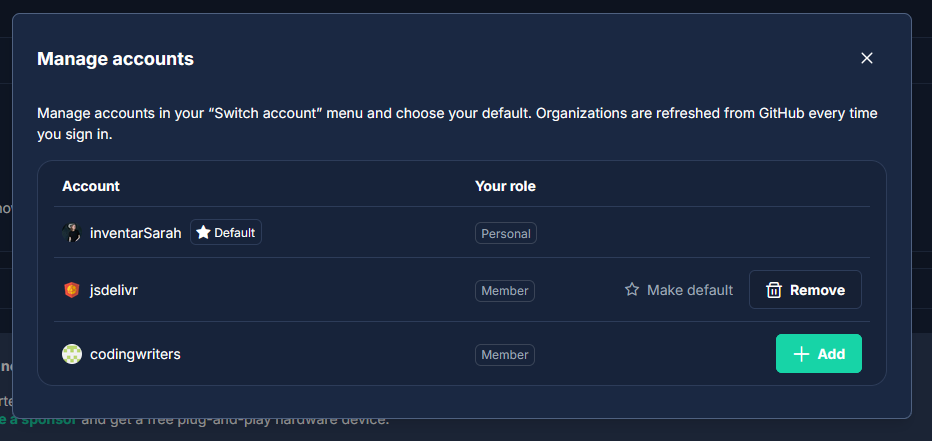
You can now switch between your personal account and your organization account via the “Switch account” option in the account menu.
Troubleshooting: Your organization isn’t listed
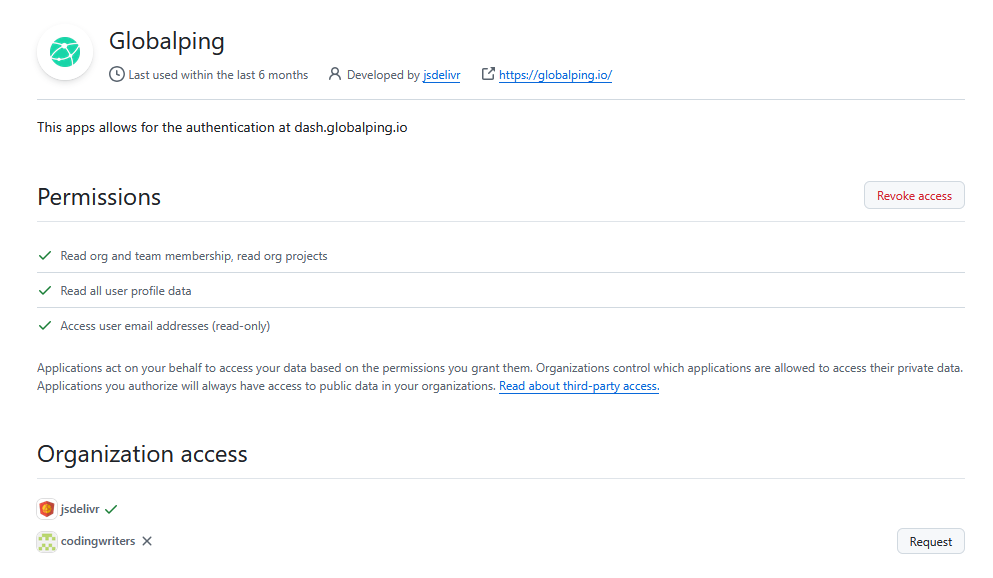
The Dashboard fetches your GitHub organizations every time you log in. If it doesn’t show up, check whether you are a private member. If so, you need to request permission from the organization admin for Globalping to read data. You can do this on the Globalping app page on GitHub.
Step 2: Move existing dashboard resources
Currently, your new organization account is empty. So let’s move probes, tokens, and credits from your personal account to the organization:
- Go to your personal Settings and scroll to “Transfer to an organization”.
- Choose the destination organization, then select the transfer options you want to perform.
Here’s a brief overview of all the options:
- Transfer probes: Moves all your personal probes to the organization.
- Adoption token: Probes take their adoption token with them, and you will receive a new token for your personal account.
- Tags: Your probes’ public personal tag is removed. If you have enabled public probes for your organization (in the organization settings), a new default tag will be assigned.
- Transfer tokens: Moves all your personal tokens and app approvals to the organization so they belong to the organization and your user. Any measurement created with these tokens will consume the organization’s credits.
- Transfer credits: Moves your current credit balance to the organization, along with any history and bonuses.
- Redirect credits: Sends any credit your personal account receives from sponsoring to the organization. If you want to move your existing credits, choose “Transfer credits”.
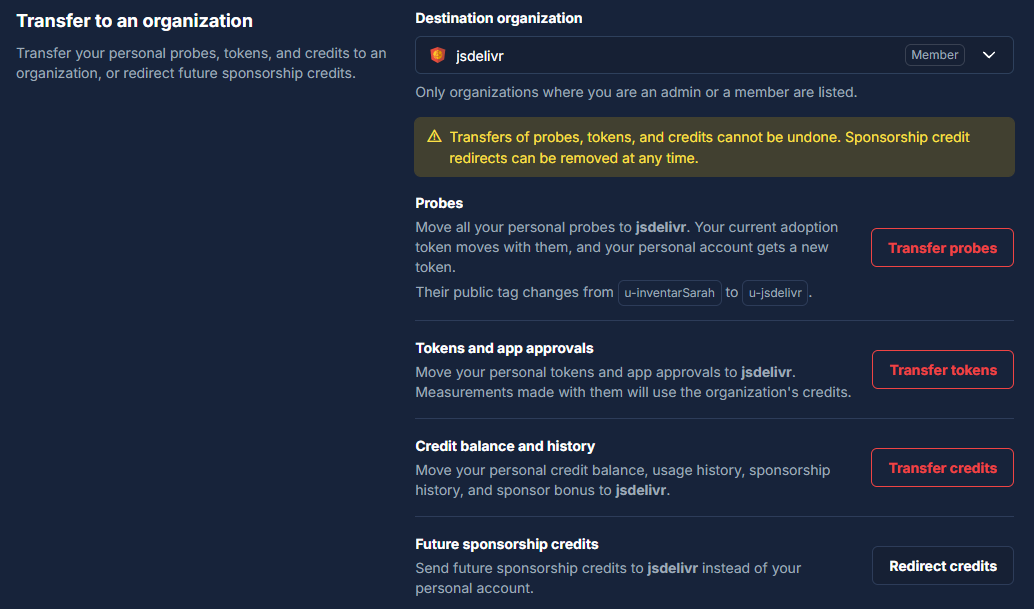
Read the description for each option carefully, and keep in mind that you can’t undo completed transfers (you can stop the credit redirect at any time).
Step 3: Assign roles
Every member can have one of three roles assigned: Admin, Member, or Viewer:
| Capability | Admin | Member | Viewer |
|---|---|---|---|
| View organization probes, credits, and usage history | Yes | Yes | Yes |
| Run measurements using the organization’s account | Yes | Yes | No |
| Create API tokens and authorize apps using organization credits | Yes | Yes | No |
| Adopt, edit, or remove organization probes | Yes | No | No |
| Manage organization settings and members’ roles | Yes | No | No |
| Receive organization notifications | Yes | No | No |
Here’s how to assign roles:
- Switch to your organization.
- Go to Settings and select the Organization tab.
- Update existing team members' roles and define a default one for new members.
Credits and tokens
Credits are used to run measurements when the free hourly test allowance has been used up. Adopting probes in the dashboard generates credits, which belong to the account that owns the probe. Sponsorship is another way to gain credits, which you can connect to either your personal or organization account. If you want to keep your personal sponsorship connection but want to make the credits available to your organization, set up “Redirect credit” as described in “Step 2: Move existing dashboard resources”.
To use credits, connect the app or tool you’re using to your dashboard account. This is usually done via an API token (for example, for Globalping CLI) or an app approval (for example, for Globalping Slack app). The account in which you create the used credential spends the credits:
- Tokens created in your personal account use your personal credits.
- Tokens created in your organization use the organization’s credits.
Probes and public profile
As an Admin, you can adopt and manage probes just like with your personal account. If you transfer probes from your personal account to your organization account, all data, including the adoption token, goes with them. If your organization has set probes to be public (via the Organization settings), they will get a new default tag with your organization name (“u-organization”).
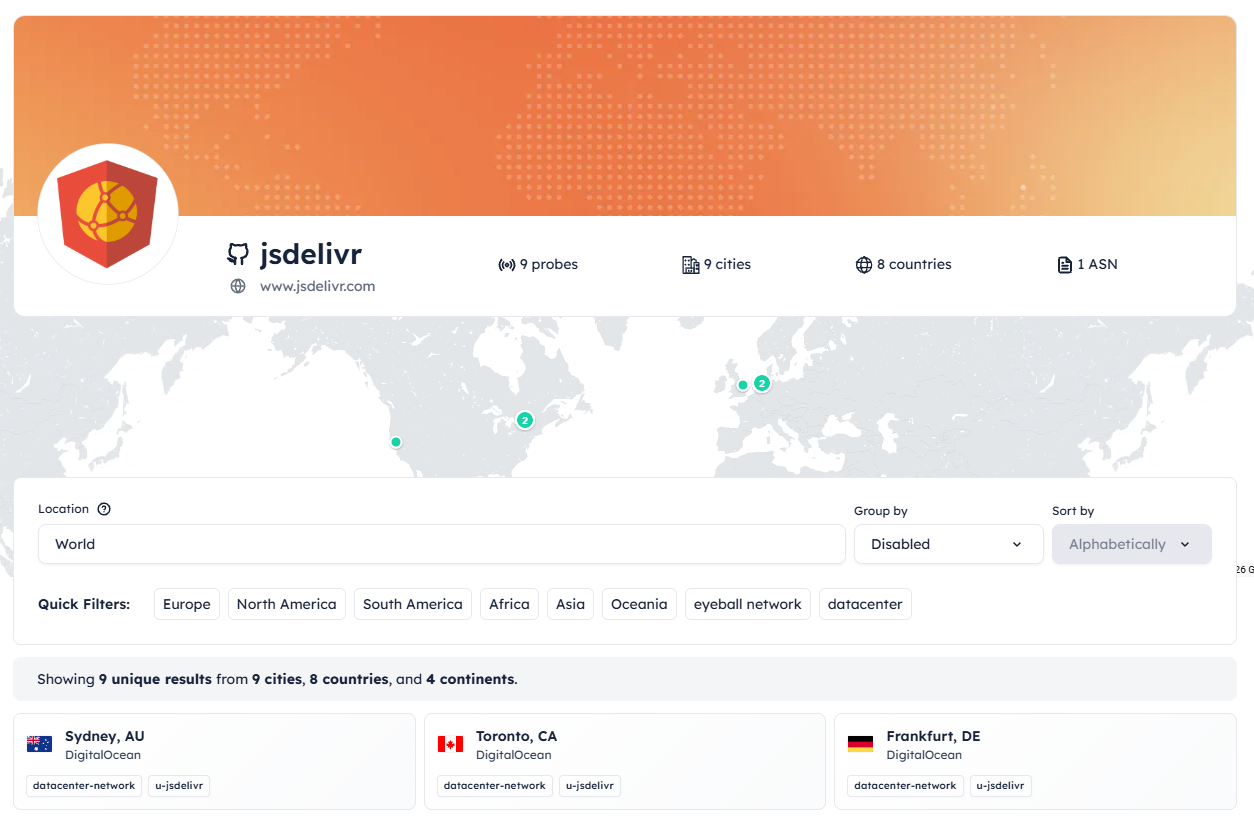
Making your probes public also creates a public organization profile that lists your probes. In the organization settings, you can also add information about your organization to display on this page, like a description and banner image. If you don’t want this page, then turn off public probes for your organization.
For example, jsDelivr’s public profile page:
What happens when someone leaves the organization?
Once Globalping syncs that a member has left your GitHub organization, it removes them from the dashboard organization, along with any personal API tokens and app approvals they created in the organization. If you change someone’s role to Viewer, those credentials will be deleted as well.
Every probe or credit owned by the organization will stay, even if it was created or transferred by the departing person.
Summary
Organization accounts give your team a shared place for probes and credits so even if someone leaves the team, these resources remain within the organization.
If your team runs probes or shares Globalping integrations, go to the dashboard to add your organization and move your existing resources – it’s free and only takes a minute.