
We recently added a new feature to the Globalping Dashboard: email notifications for your adopted probes. You’ll now receive an email when one of your probes goes offline for more than 24 hours or when a probe has outdated software or firmware and can’t be updated automatically.
In this blog post, we’ll take a closer look at the two email notification types, when they’re useful, and how you can manage them.
The two email notification types
Probe offline for more than 24 hours
If one of your adopted probes goes offline and doesn’t come back within 2 days, you will receive an email from the dashboard. The notification includes the probe’s name and IP address, as well as when the probe needs to come back online before it gets removed from your account.
This should give you the information you need to identify the probe and make it active again before the removal deadline. If you miss this deadline, you can always re-adopt the probe in the dashboard.
Probe running outdated software or firmware
Globalping probes update automatically in most cases. However, when an update fails, and your probe runs outdated software (e.g., for probes running in Docker) or firmware (for hardware probes), it can affect the probe's reliability.
When this happens, Globalping sends you an email with the probe’s name and IP address, along with a link to the relevant information to help you update it manually.
When are email notifications useful?
Not every user needs email notifications, but for some setups, they can be really handy.
Let’s look at some examples:
Let’s say you’re running a probe on a Raspberry Pi at your office. If the device loses power or the network goes down, you might not notice (especially if you’re at home). Worst case, you only discover the issue when opening the dashboard. However, with email notifications turned on, you potentially realize it earlier.
Or imagine your team runs a large number of probes across different locations. It’s not realistic for your colleagues to check the dashboard every day to see if all probes are still okay. Email notifications automatically alert your team when something needs their attention, without setting up additional monitoring.
How to manage email notifications
We’ve turned email notifications on by default, so you don’t need to do anything to start receiving them.
If you’d like to turn them off (or back on again), you can do so at any time:
- In the dashboard, go to your account > Settings and scroll down to Notifications
- Toggle the email notifications on or off
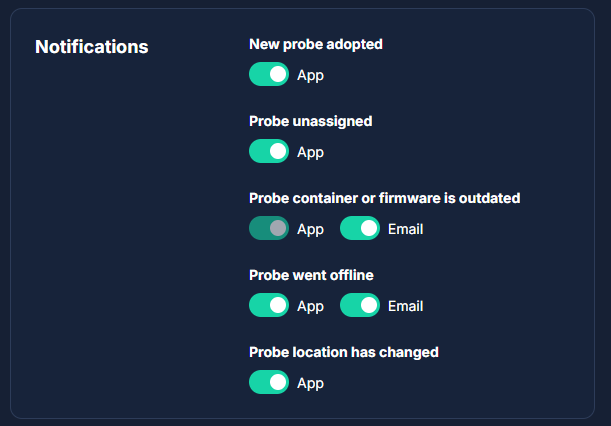
Make sure you have an email address saved in your account settings; otherwise, you won't receive notifications.
Conclusion
We’ve added email notifications to make probe management a little easier, especially for users who don’t check the Globalping Dashboard very often. If your probe goes offline or needs a manual update, you’ll be notified, so you don’t need to remember to check the dashboard regularly.
Go to the dashboard to review your notification settings and make sure everything is configured the way you want!