
After moving your website to a new domain or switching hosting providers, the next step is usually to wait for the updated domain settings to take effect; in other words, you are waiting for DNS propagation to complete globally.
The tricky part is that without special tools, you can’t know whether DNS propagation has concluded everywhere. Do your users in South-East Asia get the same result as you do, or are they still being served the old state? After at least 3 days, you can assume DNS propagation has completed for everyone, but how can you check worldwide propagation in the meantime?
In this blog post, we’ll tackle this problem. First, we’ll take a quick look at what DNS propagation is and what causes the different delays. Then we’ll show you how to check DNS propagation from your location and, finally, how to use Globalping to check DNS propagation worldwide quickly and for free.
What is DNS propagation?
Basically, DNS propagation is the time it takes for changes to your DNS records to update across the internet. For example, if you switch hosting providers, you update your domain’s A record to point to a new IP address. However, when you request your website in the browser, it doesn’t resolve to the new location immediately.
It takes a while for your changes to propagate across ISPs, DNS servers, and users’ local DNS caches. During this time, websites and apps may not resolve properly, and some users may see the updated version while others still see the old version.
How long does DNS propagation take?
Different DNS record types typically take different amounts of time to update, and some propagate faster than others. That said, as mentioned above, numerous systems and devices can affect DNS propagation for you and your users.
So how long does it take?
- Updating DNS records such as A, AAAA, or CNAME is typically faster and takes between a couple of minutes and 24 hours.
- NS records, on the other hand, typically take the longest, with up to 72 hours, because resolvers around the world may have already cached your old NS records, and NS records are often set with long TTLs (24–48 hours).
And what affects the time?
- TTL (Time to Live) settings: DNS records have TTL settings that determine how often the DNS cache refreshes. The lower the number (in seconds), the faster changes propagate.
- ISP caching: some ISPs may have their own DNS caching rules and ignore your settings. Different ISPs handle this differently, so that you can expect different DNS propagation times across ISPs.
- DNS server: updates also need to be made across global DNS servers, which also cache your settings.
- User DNS cache: your users’ operating systems and browsers also cache DNS records.
Given all these different caches, it's clear why DNS propagation can feel like a guessing game. But you’re reading this because you don’t want to wait and guess – you want to check propagation. So let’s see how you can do that.
Checking DNS propagation with dig
dig is a network command-line tool for querying DNS information. You can use it to get the IP address associated with a domain, query different types of DNS records, or investigate the authoritative DNS servers for a domain. It is available on Linux, macOS, and Windows (via WSL or BIND’s DNS utilities).
For example, let’s say we want to check which IP address our domain points to:
dig globalping.io
fetches the current DNS from your location if you run it from your computer. The result looks something like this:
; <<>> DiG 9.18.39-0ubuntu0.22.04.6-Ubuntu <<>> globalping.io
;; global options: +cmd
;; Got answer:
;; ->>HEADER<<- opcode: QUERY, status: NOERROR, id: 25287
;; flags: qr rd ra; QUERY: 1, ANSWER: 2, AUTHORITY: 0, ADDITIONAL: 1

;; OPT PSEUDOSECTION:
; EDNS: version: 0, flags:; udp: 512
;; QUESTION SECTION:
;globalping.io.                 IN      A

;; ANSWER SECTION:
globalping.io.          270     IN      A       104.21.53.224
globalping.io.          270     IN      A       172.67.219.91

;; Query time: 29 msec
;; SERVER: 10.255.255.254#53(10.255.255.254) (UDP)
;; WHEN: Wed Sep 02 09:49:00 CEST 2026
;; MSG SIZE  rcvd: 74
The most interesting part for us is the “ANSWER SECTION”. Here we can see the IP addresses associated with globalping.io and compare them with the changes we made.
The downside of running dig from your own machine is that it only shows what your configured resolver sees, and most users won’t use the same one. Users in a different country or ISP are likely to use a different resolver (with its own cache). If you don’t have access to machines in those locations, you can’t see whether DNS has propagated there. So let’s see how you can do just that with Globalping.
What is dig?
How to read a dig result
Check DNS propagation worldwide with Globalping
Globalping is a free, open-source network measurement platform. It relies on a large network of probes across the globe, letting anyone run various networking commands from any location. You can define different location types to test DNS propagation from different locations, ASNs, and network providers.
Globalping’s equivalent to the dig tool is its dns command, which basically runs a dig command from a probe located in the network. This is why you will notice that the result presentation looks the same, which means if you already know how to read a dig result, you already know how to read a Globalping DNS query result.
Quick how-to on how to query DNS with Globalping
We provide various tools to run network measurements, so you can use what best fits your workflow. For example, we provide a Globalping MCP server, Slack app, API, and provider-specific looking glass pages, among others.
For this demonstration, we will use two of our most popular tools: the website and the CLI tool.
Using the website tool
The website is ideal for quick tests on the go or if you prefer a user-friendly interface for running and reading tests.
- Visit https://globalping.io/ and use the form at the top to create a
dnstest. - The “location” field suggests options as you type. In our example, we’re using “europe+eyeball-network”, which picks only probes hosted in eyeball networks (meaning residential ISP networks) in Europe.
- Next, define how many probes you want the test to run via the “limit” field.
- Clicking the cogwheel icon reveals more settings: you can define the port, protocol, and DNS record type to query, or specify a resolver’s IP address.
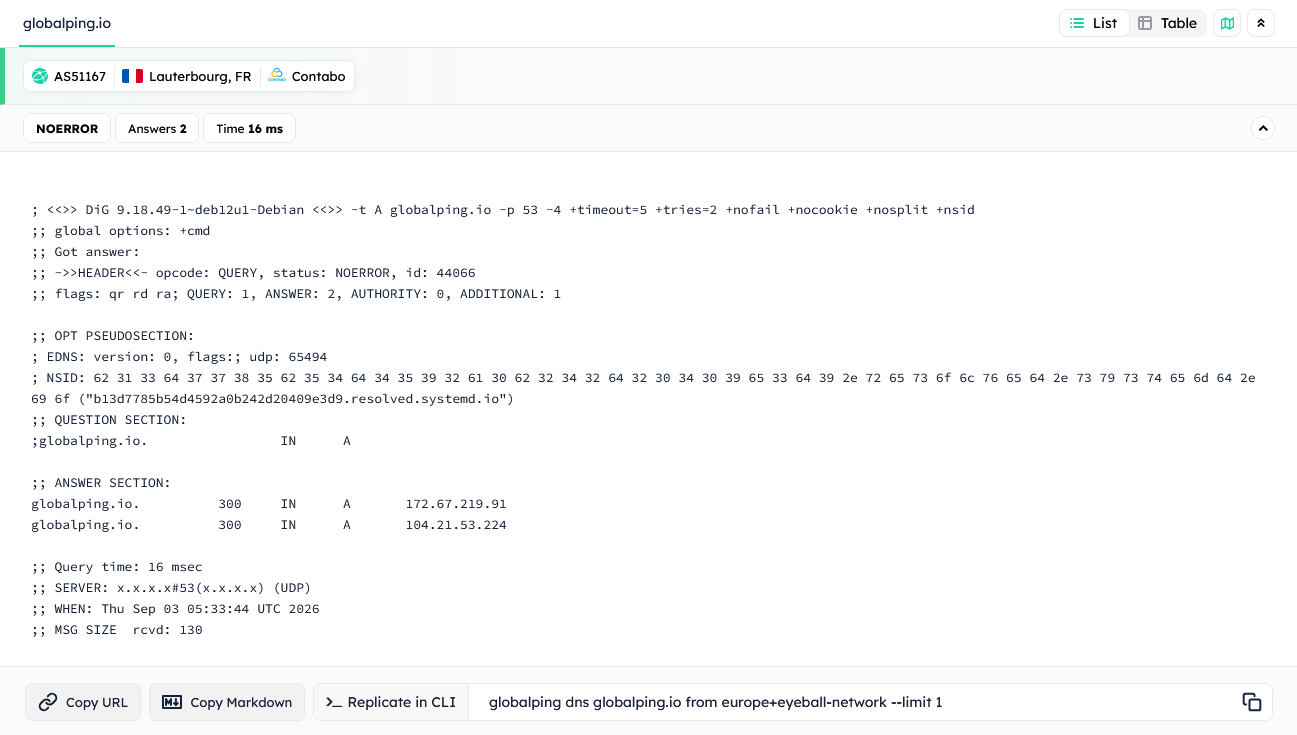
- Finally, click “Run test”. The result should appear in a moment, and the map will update with probes that ran your test. Underneath, you can find the DNS results, which look just like the dig result.
This is the test we’ve created for this example:

And this is the result we got:
Using the CLI tool
If you prefer the terminal, installing and using the Globalping CLI is the best option.
To recreate the test from above, run the following command in your terminal:
globalping dns globalping.io from europe+eyeball-network --limit 1
The result looks similar to the one received from the website tool:
> Lauterbourg, FR, EU, Contabo (AS51167)
; <<>> DiG 9.18.49-1~deb12u1-Debian <<>> -t A globalping.io -p 53 -4 +timeout=5 +tries=2 +nofail +nocookie +nosplit +nsid
;; global options: +cmd
;; Got answer:
;; ->>HEADER<<- opcode: QUERY, status: NOERROR, id: 42442
;; flags: qr rd ra; QUERY: 1, ANSWER: 2, AUTHORITY: 0, ADDITIONAL: 1

;; OPT PSEUDOSECTION:
; EDNS: version: 0, flags:; udp: 512
; NSID: 6c 74 67 33 2e 72 65 73 6f 6c 76 65 72 2e 63 6f 6e 74 61 62 6f 2e 69 6e 74 72 61 ("ltg3.resolver.contabo.intra")
;; QUESTION SECTION:
;globalping.io.                 IN      A

;; ANSWER SECTION:
globalping.io.          300     IN      A       172.67.219.91
globalping.io.          300     IN      A       104.21.53.224

;; Query time: 19 msec
;; SERVER: 213.136.95.10#53(213.136.95.10) (UDP)
;; WHEN: Wed Sep 02 08:27:51 UTC 2026
;; MSG SIZE rcvd: 105globalping dns --help to see some command examples and a list of flags you can use with the command.Which commands to run with Globalping to check DNS propagation
Now that we know how to run DNS checks with Globalping, let’s look at some useful examples that help you check DNS propagation in a real-world scenario.
Test from different locations
You can define different locations to run tests from, such as continents, regions, countries, states, cities, ASNs, networks, and network types:
globalping dns globalping.io from australia
globalping dns globalping.io from europe
globalping dns globalping.io from texas
globalping dns globalping.io from munich
globalping dns globalping.io from as396982
globalping dns globalping.io from comcast
globalping dns globalping.io from datacenter-network
Additionally, use filters with the + character to fine-tune your selection:
# picks a probe from a datacenter network probe in Australia
globalping dns globalping.io from australia+datacenter-network

# picks a probe from a probe hosted with Comcast in California
globalping dns globalping.io from comcast+california
To test from multiple locations at once, you can separate locations with a comma:
# picks 5 random probes from Berlin, Vienna, and Prague
globalping dns globalping.io from berlin,vienna,prague --limit 5
limit – if you set it to 1, it will only test from one of the requested locations.You can also create more complex location selectors:
globalping dns globalping.io from berlin+hetzner,vienna+datacenter-network --limit 2For more examples and tips on providing locations, see our best practices.
Test from a different resolver
By default, when you run a test from a location, the probe uses whatever DNS resolver its local network provides (usually that ISP’s own resolver). This shows what propagation looks like for that ISP’s users.
However, a lot of your users probably configure their devices to use a public resolver like Google’s 8.8.8.8 or Cloudflare’s 1.1.1.1. To see what these users would experience, query that resolver specifically using the --resolver flag.
For example, this runs a test from a European probe and uses Cloudflare’s resolver instead of the probe’s local one:
globalping dns globalping.io from Europe --resolver 1.1.1.1
Public resolvers run on many servers worldwide, so combining --resolver with different locations can help you catch inconsistencies between them.
Check specific DNS records
By default, the dns (and dig) commands will query the A record. However, you may need to test DNS propagation for the MX record (email). You can do that by using the type flag like so:
globalping dns jsdelivr.com from Berlin --type MX
Any DNS record type you can query with dig, you can query with Globalping’s dns command.
Conclusion
Checking DNS propagation with dig from your machine only tells you what your own resolvers see and doesn’t help you answer the question “is it live for everyone yet?”. Using Globalping’s DNS command lets you query from thousands of locations and resolvers worldwide, so you can confidently confirm whether your changes have propagated instead of waiting and guessing.
So next time you update your DNS records, skip the guesswork and run free DNS tests on Globalping to see where propagation stands.